Skip to content
Doc2X

A photo of a page in, a scan out.

Photograph the page where it lies: on a desk, at an angle, under a lamp. Doc2X finds the page in the photo, straightens and flattens it, and cleans the light off the paper. What comes back looks as if it came out of a scanner, as a JPG or a PDF, and one more step turns it into text you can edit.

Scan a page from a photo

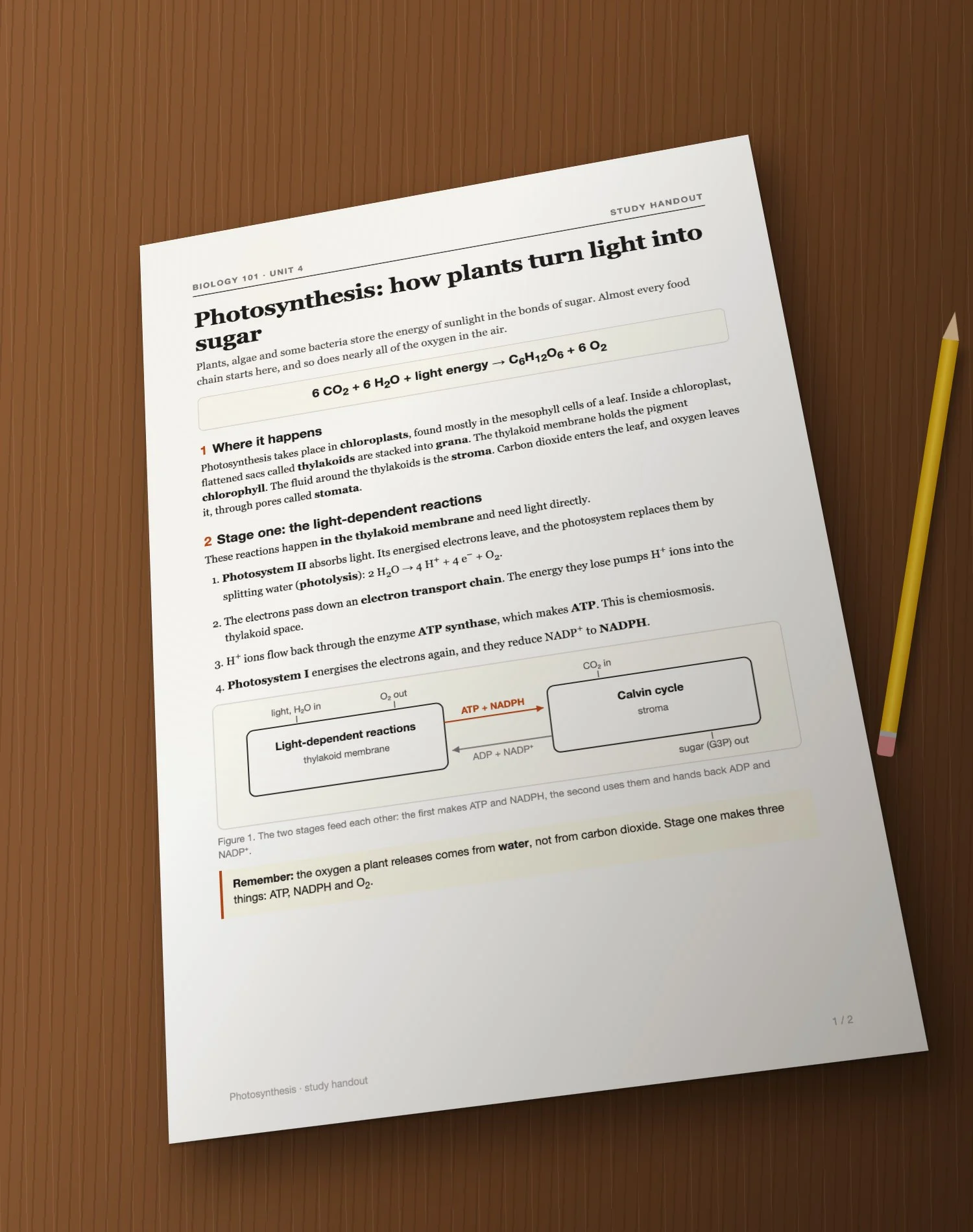
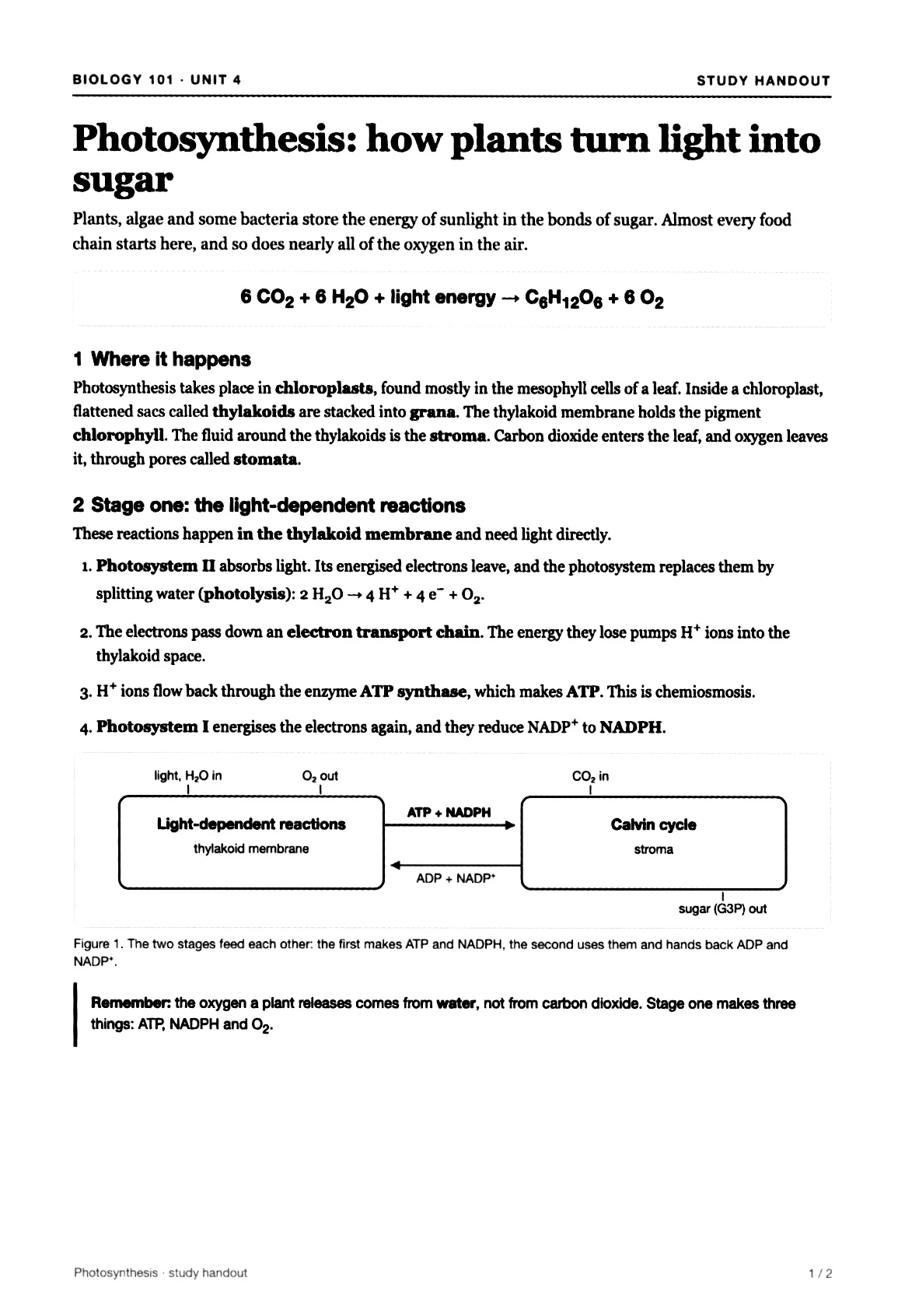
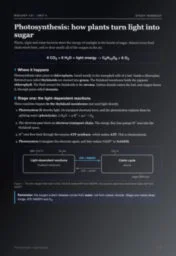
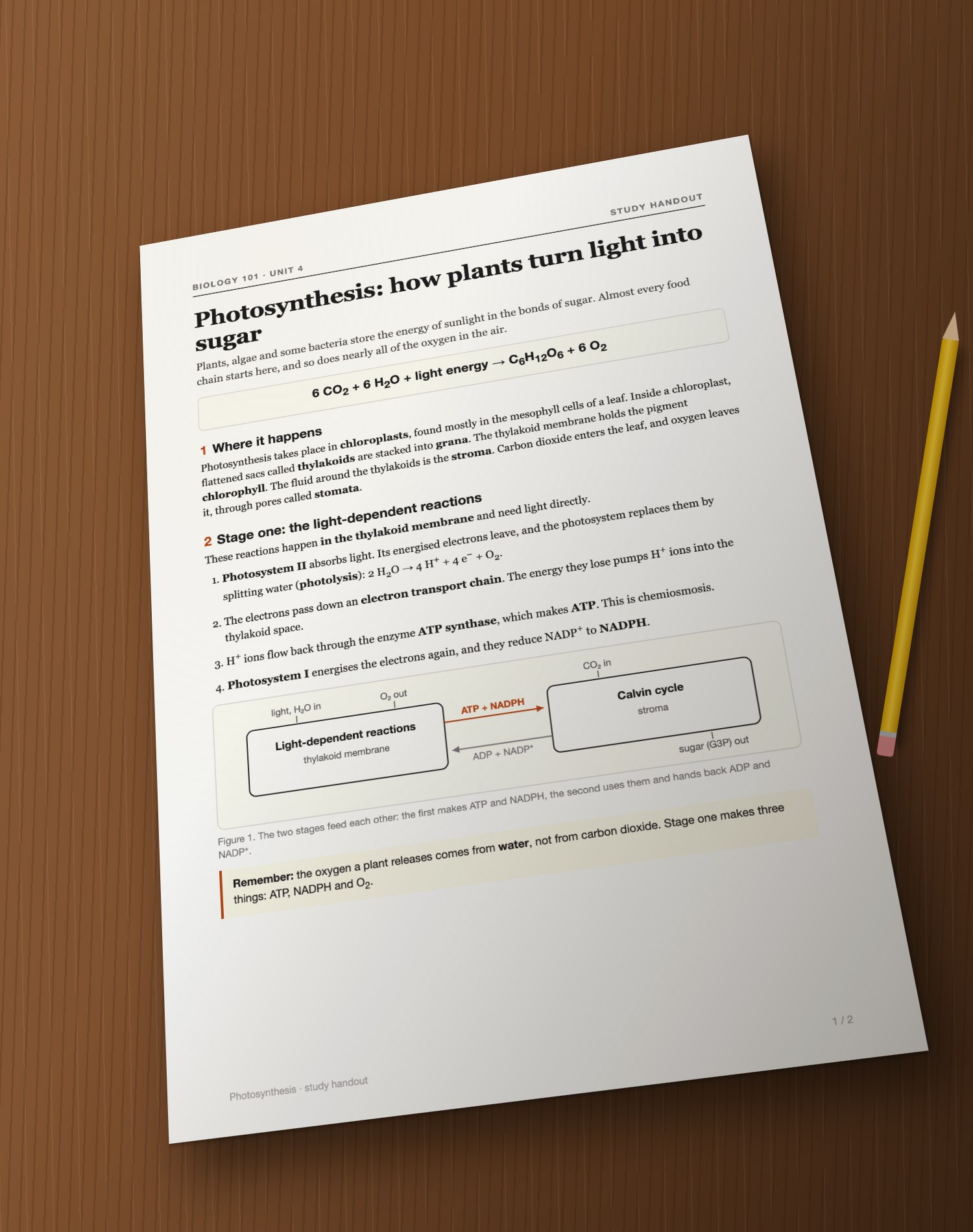
A printed handout lying at an angle on a wooden desk, in uneven light.
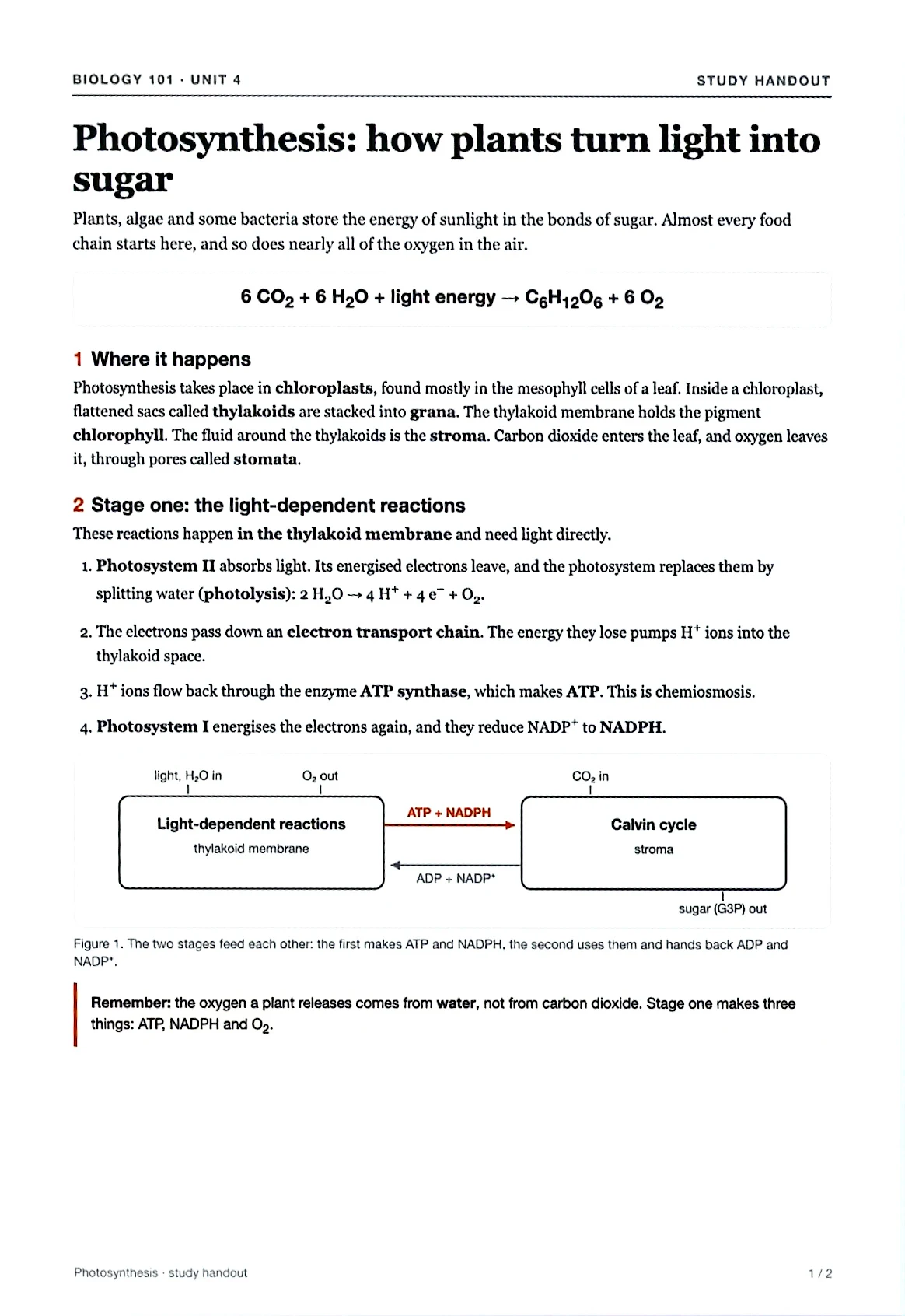
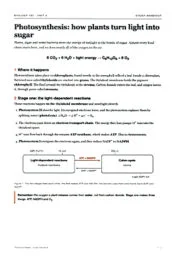
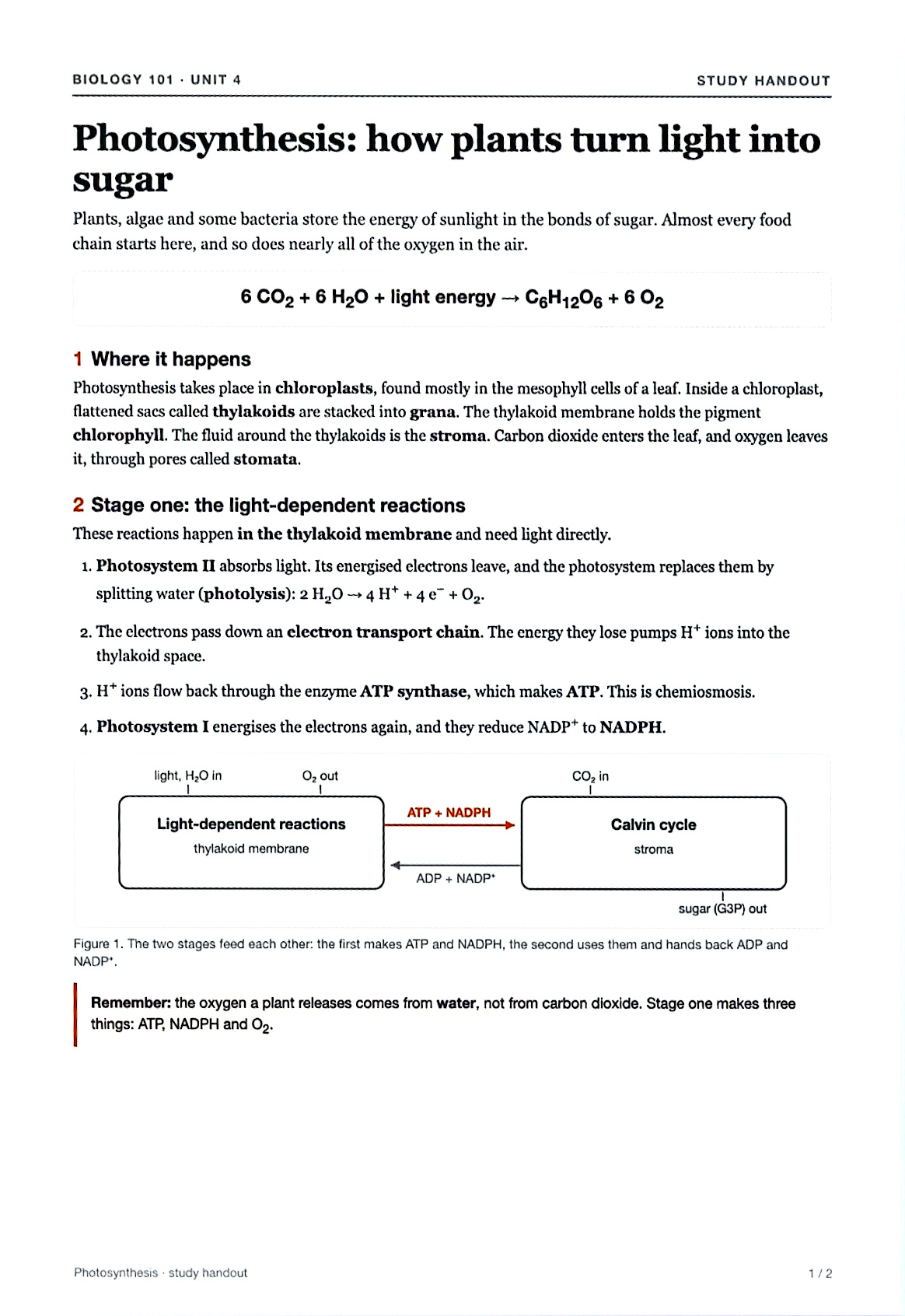
The top of the scan that came back for it: the same handout, flat and upright on white paper.
Corners found by the toolDone in 24.8 s
From
A JPG, PNG or WebP, up to 20 MB
Back
A JPG or a PDF of the page, in one of 9 looks
Cost
0.25 credits a page
Open the scanner

Free plan: 50 credits every month, no card needed. That is 200 pages.

Nothing at hand? See a photo and the scan it became

From
A JPG, PNG or WebP photo of a page, up to 20 MB
Back
The page alone: straight, flat and evenly lit, as a JPG or a PDF
Cost
A quarter of a credit a page; other corners or another look afterwards cost nothing

A photo, and its scan

What the camera saw, and what came back.

A handout lying on a desk went through the scanner once. On the photo is the outline of the page as the tool found it; beside the photo is the page that came back. Switch the look to see the same page three ways.

  • 01Nobody marked the corners: the outline on the photo is the one the tool answered with.
  • 02The page came back upright, 1,164 by 1,692 pixels, 24.8 seconds after the upload.
  • 03Under Auto the paper is white and the red of the headings is kept. Black and white turns everything to ink on white.

A handout on a desk

24.8 s 0.25 credits corners found by the tool

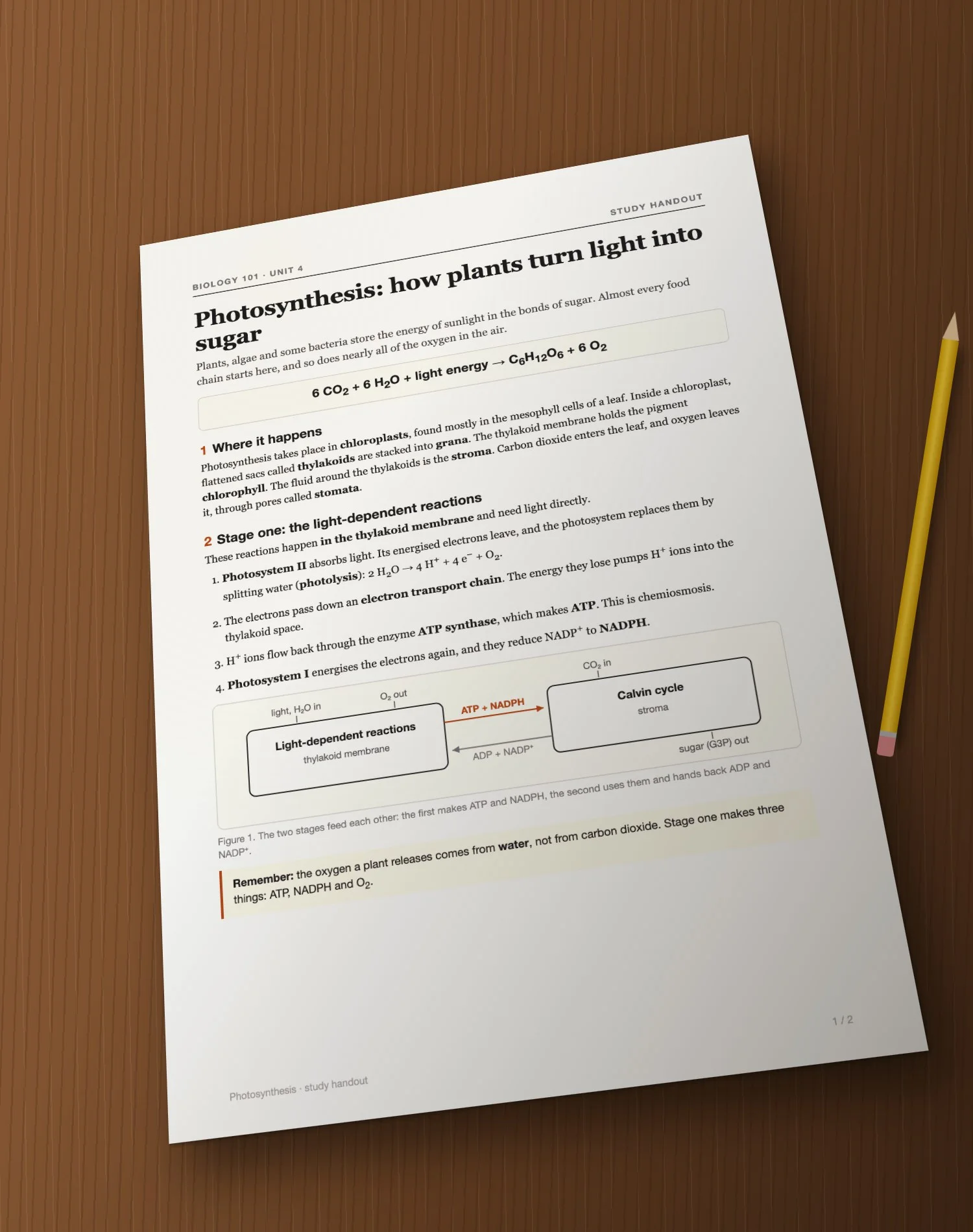
A printed handout lying at an angle on a wooden desk, a pencil beside it, the light falling unevenly across the paper.
Went in JPG, 1500 × 1900 the outline is what the tool found
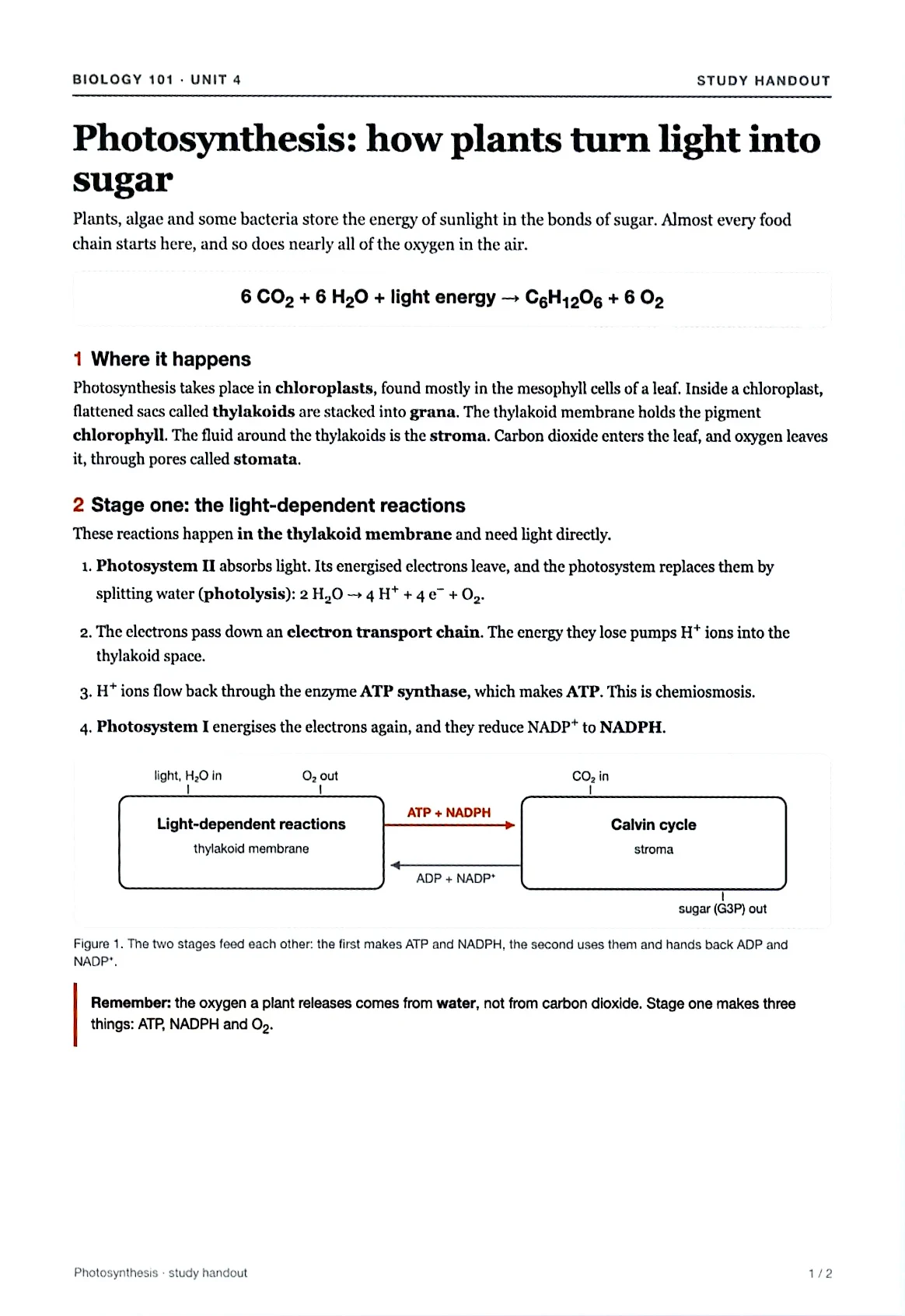
The scan that came back: the handout as a flat, upright page on white paper, its title, its two sections, its numbered list and its figure, the headings numbered in red.

Auto, the look the tool chose: the paper white, the colours kept

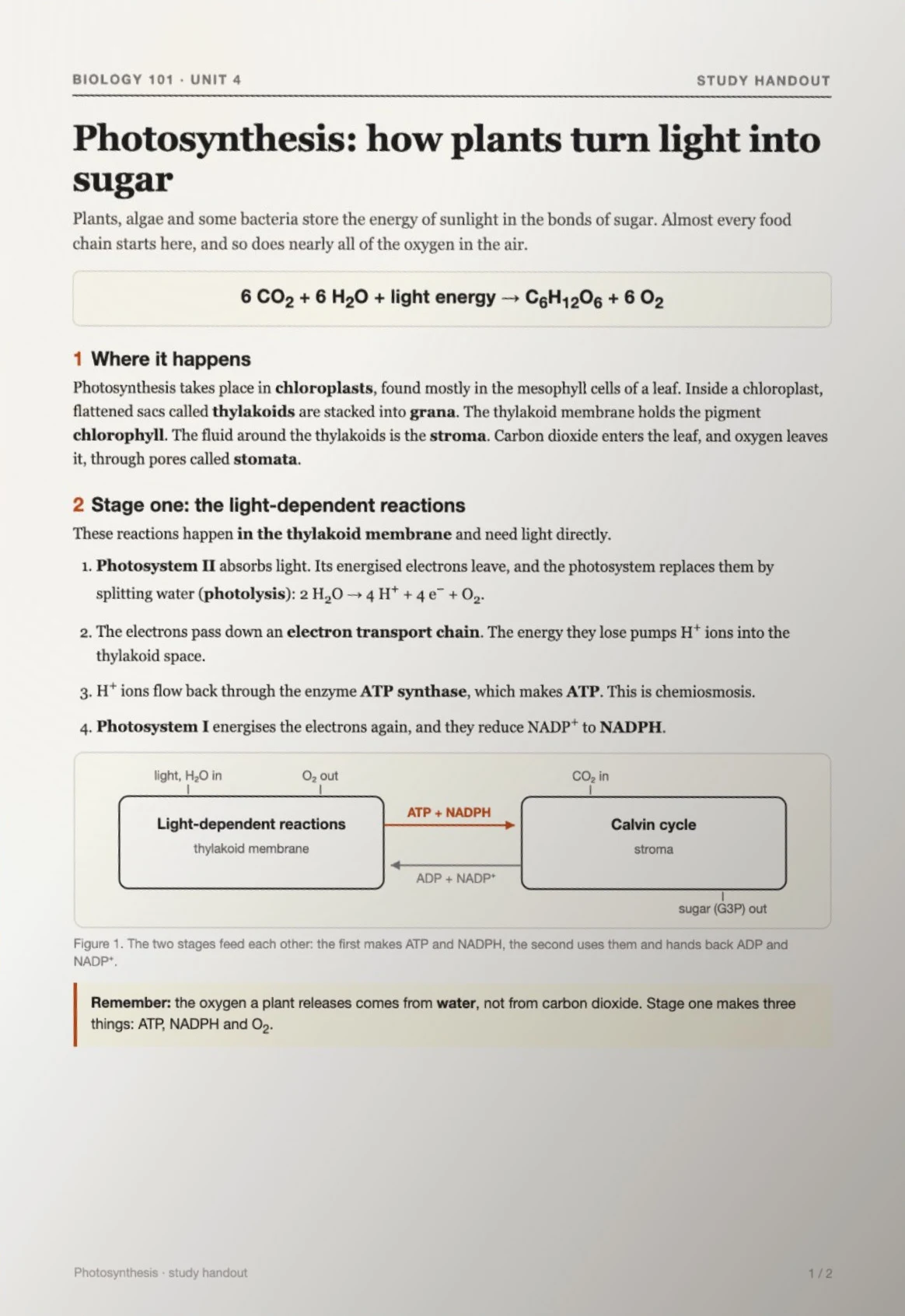
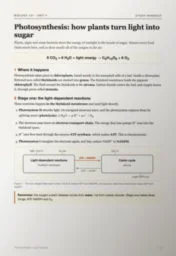
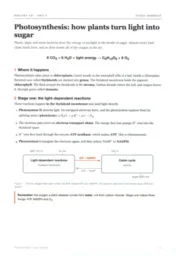
What differs from the sheet itself. Under Auto the pale tints of the handout, the box behind the equation and the band behind the note at the foot, were cleaned to white along with the shadows. Original keeps them, and keeps the light of the photo. Every word, the figure and the red of the headings are where they were.

Not a mock-up of the result, and not a camera photo either. We drew a page of our study handout lying on a desk, at an angle and in uneven light, to stand in for a phone photo, and saved it as a JPG. On 22 November 2026 the JPG was given once to the tool on the live site; nobody marked the corners. The other two looks are the same photo scanned again with that look chosen. All three are shown as they came. Open the photo that went in and the scan that came back.

Why it is worth having

A scanner's page from a phone's photo.

  1. In the photoAt an angle, in uneven light
    The heading of the handout as the photo shows it: the lines run uphill across the picture, and the paper is grey on one side.
    In the scan24.8 s later
    The same heading in the scan: the lines run level, and the paper is white from edge to edge.
    The same lines of the handout, in the photo and in the scan

    01

    Found, straightened, cleaned

    The page does not have to fill the photo or lie square to it. The tool finds its four corners, pulls them to a rectangle and evens out the light on the paper. Here are the same lines of the handout, in the photo and in the scan.

    1. The top of the scanned page under the look called Auto.

      Auto

    2. The top of the scanned page under the look called Original.

      Original

    3. The top of the scanned page under the look called No shadows.

      No shadows

    4. The top of the scanned page under the look called Brighter.

      Brighter

    5. The top of the scanned page under the look called Sharper.

      Sharper

    6. The top of the scanned page under the look called Save ink.

      Save ink

    7. The top of the scanned page under the look called Grayscale.

      Grayscale

    8. The top of the scanned page under the look called Black and white.

      Black and white

    9. The top of the scanned page under the look called Inverted.

      Inverted

    The top of the page under each of the nine looks, as the tool itself draws them small for choosing

    02

    Nine looks, chosen after the scan

    Auto suits most pages. For a page that will be printed there are Black and white and Save ink; for a photo taken under a lamp, No shadows; for a faint copy, Brighter and Sharper. The tool draws the page small under every look, and you pick. Picking another one later costs nothing.

  2. ## Photosynthesis: how plants turn light into sugar
    
    Plants, algae and some bacteria store the energy of sunlight in the bonds of sugar. Almost every food chain starts here, and so does nearly all of the oxygen in the air.
    
    \[
    6{\mathrm{{CO}}}_{2} + 6{\mathrm{H}}_{2}\mathrm{O} + \text{ light energy } \rightarrow  {\mathrm{C}}_{6}{\mathrm{H}}_{12}{\mathrm{O}}_{6} + 6{\mathrm{O}}_{2}
    \]
    
    ## 1 Where it happens
    The start of the Markdown the scan gave in the workbench: 1,834 bytes in all, 11.9 s

    03

    From a photo to text you can edit

    A scan is still a picture. Pass it to the workbench and it becomes Markdown, Word or LaTeX: the heading as a heading, the equation as LaTeX, the list as a list. Our scan took 11.9 seconds and a quarter of a credit. This is the start of the file as it came.

  3. On a scan that is doneCosts
    • Corners of the pageDrag them to the edges of the page, then apply0 credits
    • LookOne of 9, from Auto to Inverted0 credits
    • RotateA quarter turn at a time0 credits
    • Flatten a curved pageOn or off0 credits
    What can be changed on a scan after it is made, and what each change costs

    04

    Change your mind for nothing

    If the tool took the wrong edge for a corner, drag the corner and apply. Turn the page, flatten a curved one, try another look. A scan is charged once, when it is first made; what you change on it afterwards is free.

How it works

Three steps from a photo to a scan.

  1. 01

    Take the photo

    Any phone will do. Keep the whole page in the picture; it may lie at an angle. A JPG, PNG or WebP of up to 20 MB, or up to 40 photos at once.

  2. 02

    Sign in and scan

    The page is found, straightened and cleaned for a quarter of a credit, charged when the scan is made. Ours took 24.8 seconds. Several photos at once are scanned one after the other, with the corners found for you.

  3. 03

    Adjust, then download or go on

    Move a corner, turn the page or pick another look, free of charge. Download the scan as a PDF or a JPG, or pass it on without downloading it: to take handwriting off it, or to the workbench to turn it into text.

The fine print

What it takes and what it gives back.

Better to know before you start. The last list is what it does not do today.

Takes
A JPG, PNG or WebP photo, up to 20 MB and between 100 and 10,000 pixels on a side. A photo of more than 20 million pixels is made smaller in your browser before it is sent
Finds
The four corners of the page. If no page is found, the whole photo is used and you set the corners by hand
Does
Pulls the page straight, flattens a curved one unless you switch that off, evens out the light
Looks
Auto, Original, No shadows, Brighter, Sharper, Save ink, Grayscale, Black and white and Inverted
Gives back
The page as a JPG, or as a PDF of one page. Ours came back 1,164 by 1,692 pixels from a photo of 1,500 by 1,900
How long it takes
Ours: 24.8 seconds. The same photo scanned again with a look chosen: 6.9 seconds. Most pages are done in under half a minute
How many
Up to 40 photos at a time, done one after the other. A list can be downloaded together as a ZIP
Cost
A quarter of a credit a page, charged when the scan is made. Other corners, another look, a turn: free
Storage
Photos and scans are kept for 31 days, then deleted. You can delete one sooner
Not a fit yet

  • One PDF of many pages. Each photo gives its own page; to bind them, merge the PDFs with the free Merge PDF tool of this site.
  • Two pages in one photo, such as an open book. One photo gives one page.
  • A photo in which part of the page is missing. What the camera did not see cannot be put back.
  • Text you can select, straight from the scanner. The scan is a picture; the workbench turns it into text in one more step.

Questions

Questions people ask first.

Something else on your mind? The help center goes deeper.

How do I turn a photo into a scanned document?

Take a photo of the page, open the scanner, choose the photo and start it. The page is found in the photo, pulled straight and cleaned, usually in under half a minute; the one on this page took 24.8 seconds. Download it as a PDF or a JPG.

Is it free?

The free plan gives every account 50 credits a month and needs no card. A scan costs a quarter of a credit, so that is 200 pages a month for nothing. Changing the corners or the look of a scan afterwards is not charged.

Can I get the scan as a PDF?

Yes. A scan is offered as a PDF of one page and as a JPG. Several scans can be downloaded together as a ZIP; to bind them into one PDF, merge them with the free Merge PDF tool of this site.

What if it gets the edges of the page wrong?

Drag the corners to the edges of the page and apply. If no page was found at all, the whole photo is used and the corners wait for you. Setting them costs nothing more.

Does it work on a curved page, or a page in shadow?

There is a switch that flattens a curved page, and a look called No shadows for uneven light. Our example was a flat page in uneven light. How well a curved page comes out depends on the photo: try it, and change the look or the corners for nothing.

Can I scan many pages at once?

Up to 40 photos at a time. They are scanned one after the other with the corners found for you; to set the corners of a page by hand, open it once it is done.

Can I make the scan editable or searchable?

Pass it to the workbench and convert it, for a quarter of a credit a page: Markdown, Word, LaTeX or Typst, with formulas as LaTeX and tables as tables. Our scan became a Markdown file of 1,834 bytes in 11.9 seconds.

How is this different from the scanner app on my phone?

A phone app does the same first step. This one runs in a browser on any device, with nothing to install, and its scan can go straight on: handwriting taken off it, or the page converted to Markdown, Word or LaTeX with its formulas.

Are my photos kept?

For 31 days, so that you can come back to them; then they are deleted automatically. You can delete a photo and its scan sooner, from the list on the scanner's page.

The page on your desk, on file.

Free plan: 200 pages a month. No card needed.