Doc2X Help Center
Doc2X is for people who need to read a PDF in another language without rebuilding the document by hand. Upload the PDF, choose a language, and review a translated result that stays easy to compare, read, and export.
If you are new to Doc2X, start with the workflow below. Most PDFs can be translated with the default settings; Advanced settings are there when a document needs extra care.
What Doc2X helps with
- Translate research papers, reports, manuals, contracts, and other PDF documents.
- Keep the translated PDF close to the original layout, so headings, pages, and visual structure remain familiar.
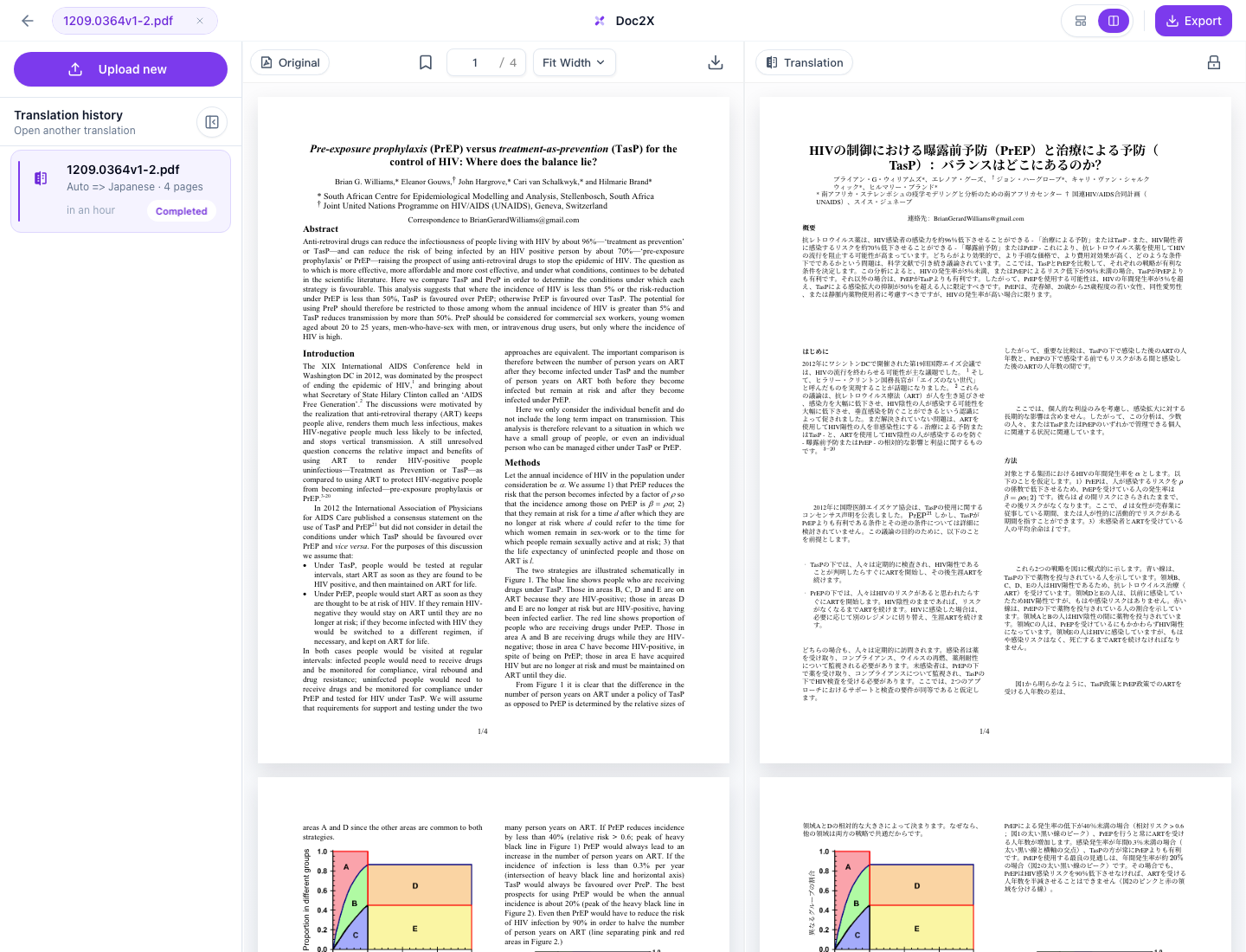
- Compare the source PDF and translated PDF when you want to check an important paragraph.
- After signing in, upload a file and set translation options to complete a high-quality translation in one step.
A typical translation
- Sign in with your email or Google account.
- Choose the target language and translation model. Models from different providers can have different translation preferences.
- Open Advanced settings only when you need to skip content, enable Enhanced translation, or make other custom choices.
- Upload a PDF from the Workbench page.
- Start translation and wait for Doc2X to upload, parse, and translate the file.
- Review the result in the reader, compare the source and translation if needed, then export when you are ready.
Upload a PDF
The Workbench is the starting point for PDF translation. Use it when you have a document ready and want Doc2X to prepare a translated version for reading.
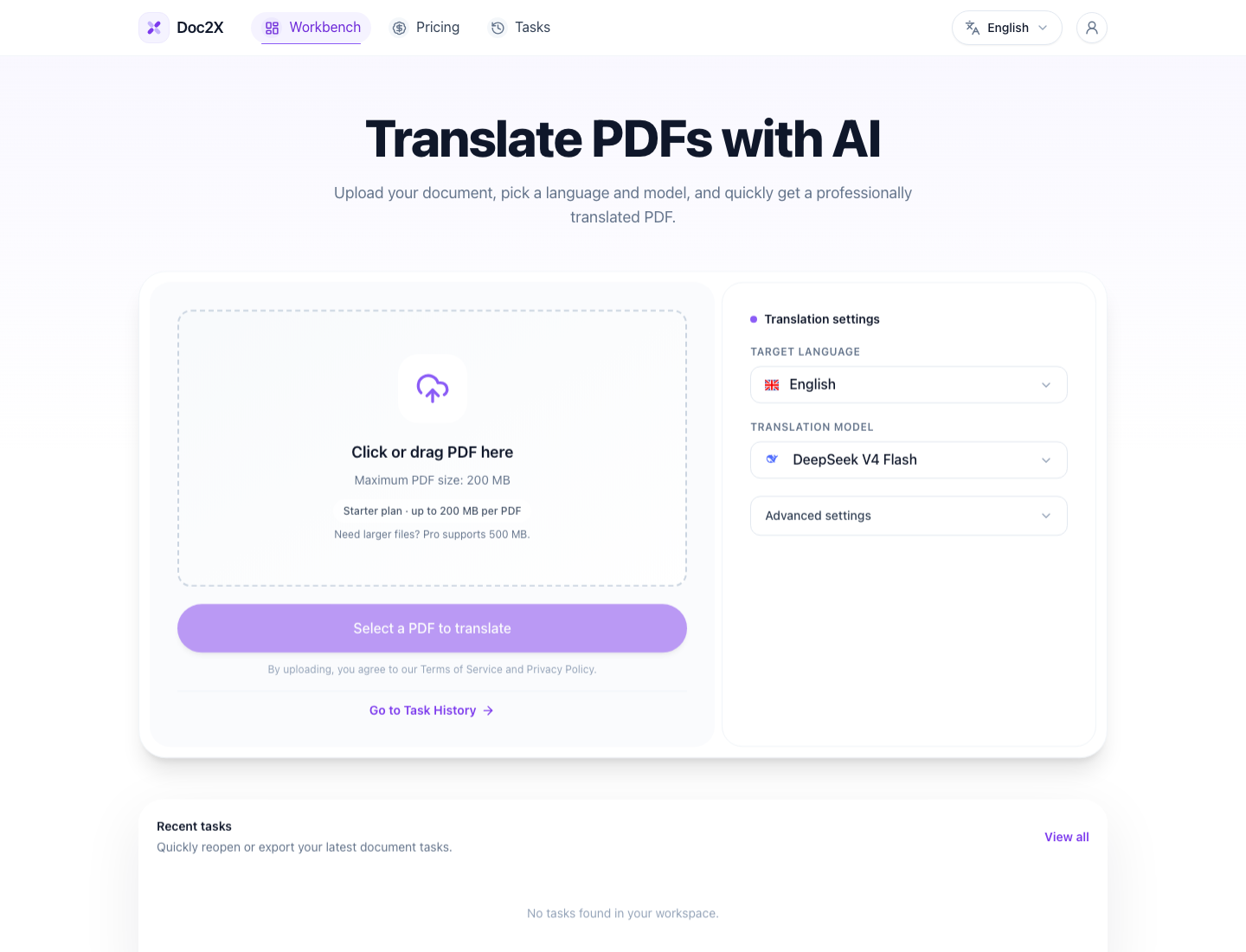
After you choose a file, Doc2X shows the file name, size, page count, preview status, and the limit for your current plan. This helps you confirm that you selected the right document before spending credits.
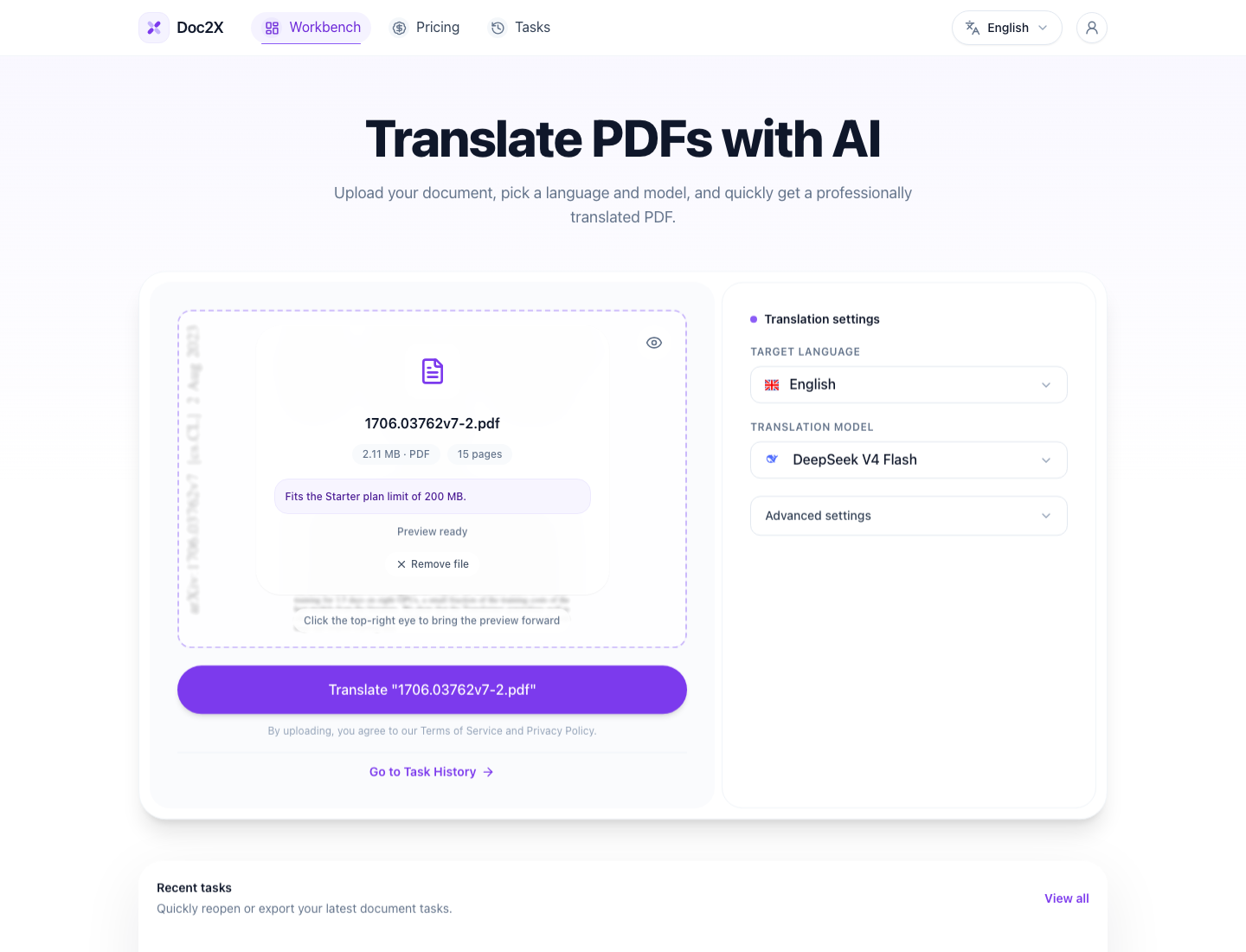
Choose translation options
The default setup is designed for everyday PDFs. Use Advanced settings when you already know part of the document should stay unchanged, such as code, references, or tables that are mostly numbers.
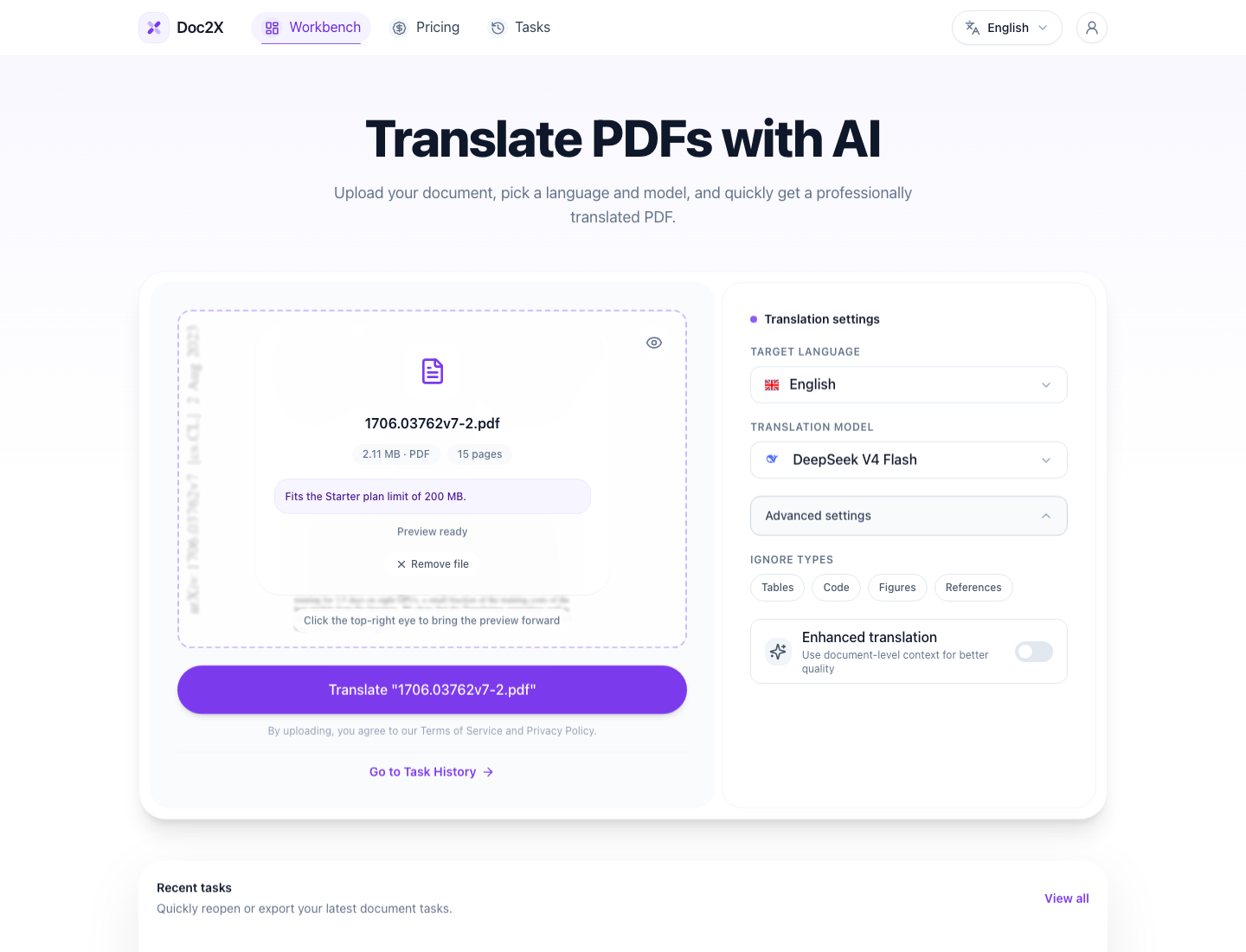
| Option | Use it for | Credit impact | Other notes |
|---|---|---|---|
| Target language | Choosing the language you want to read | Changing the language does not change credit usage | If the translated text becomes much longer, the visual result may look worse |
| Translation model | Balancing quality, speed, and credit usage | Different models consume different amounts of Credits | None |
| Ignore content | Tables, code, figures, or references that truly do not need translation | Ignoring content does not change credit usage | In rare cases, model limitations may cause ignored content to still be translated |
| Enhanced translation | Adds more context during translation for better consistency in long or specialized documents | Uses more Credits than standard translation | Translation takes slightly longer |
Read the result
Most users start with the layout-preserved translated PDF. If you need to verify a phrase, use the comparison view to read the source and translated PDF side by side.
When a task also includes a text-first result, it appears inside the reader after the PDF translation is complete. You do not need to upload the document again or choose a separate Markdown mode.
Credits and plans
Doc2X shows Credits as one user-facing balance. You do not need to think in separate page or technical meters while using the product.
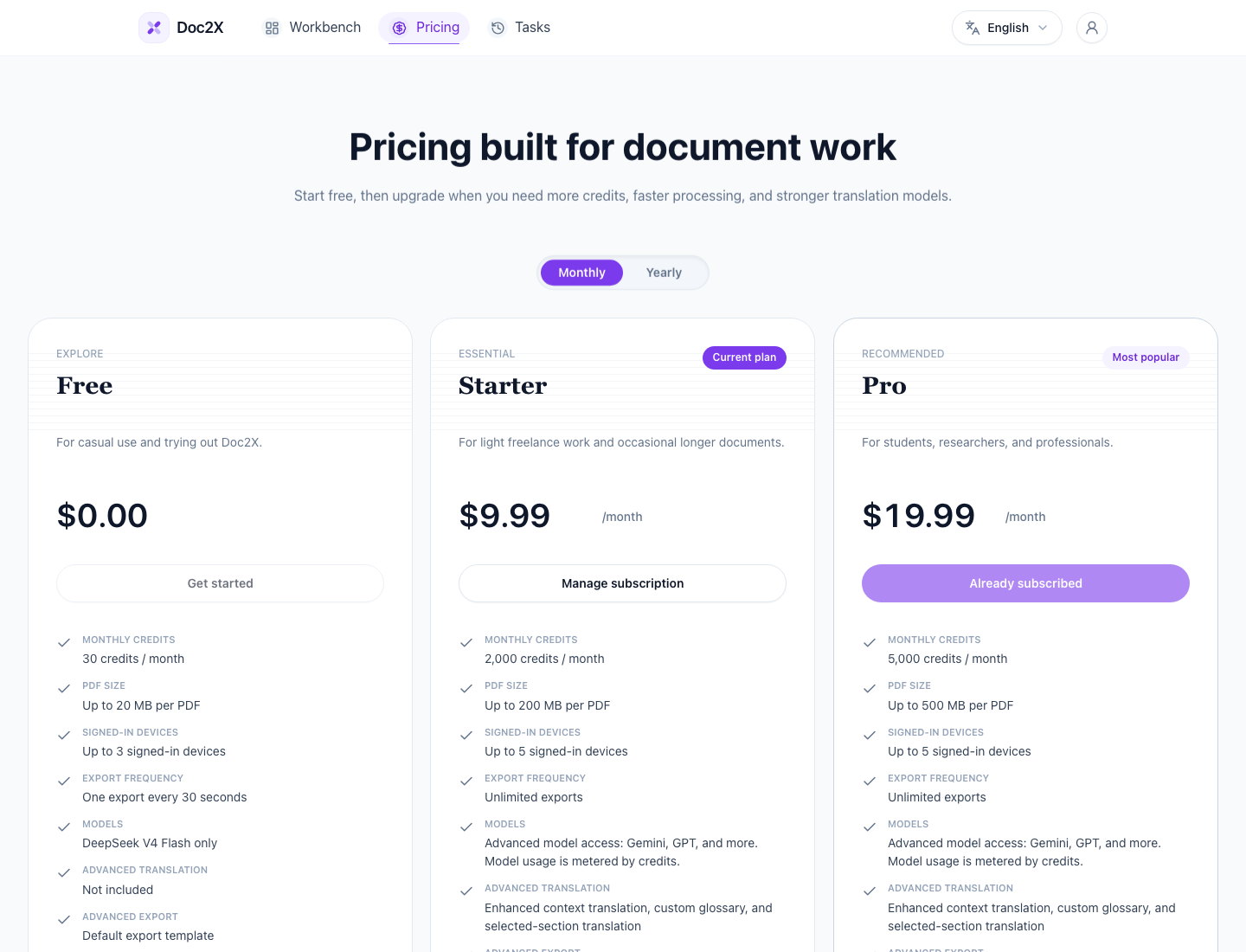
Before a task starts, Doc2X estimates usage from the PDF and your selected options. After processing, the final charge reflects the actual work done. Learn more in Credits and plans.
Account and task history
Use Settings to check your plan, credits, and account session.
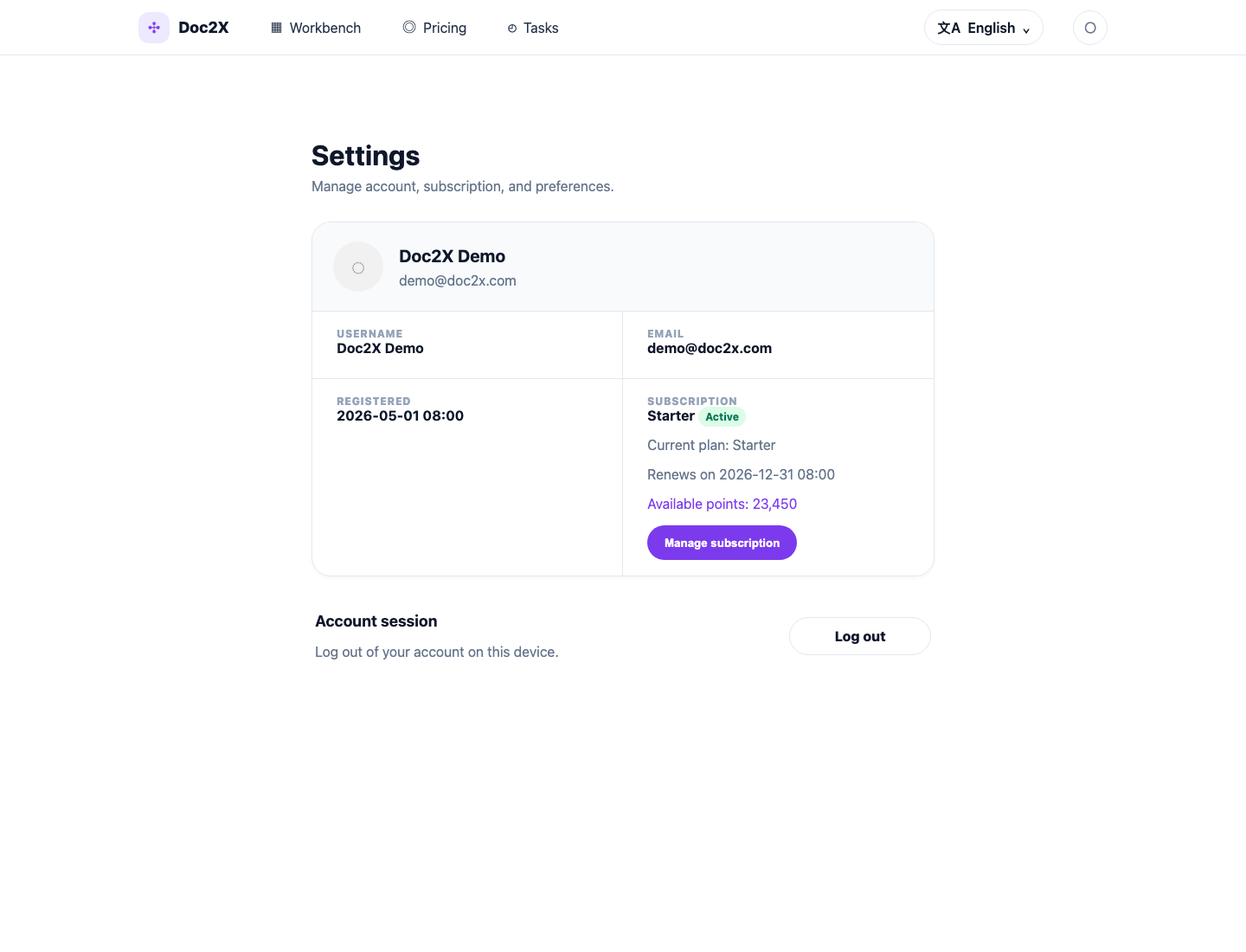
Use Tasks to reopen previous translations, check recent work, or remove records you no longer need.