PDF translation
Use this guide when you have a PDF in front of you and want a translated version you can actually read, compare, and share.
Before you start
- Sign in first: use an email or Google account so Doc2X can save your task history and apply your plan.
- Use the cleanest PDF you have: clear text and higher-quality scans usually produce better results.
- Check your AI Credits: Doc2X estimates the task before translation, but you still need enough available credits to begin.
Translate a PDF
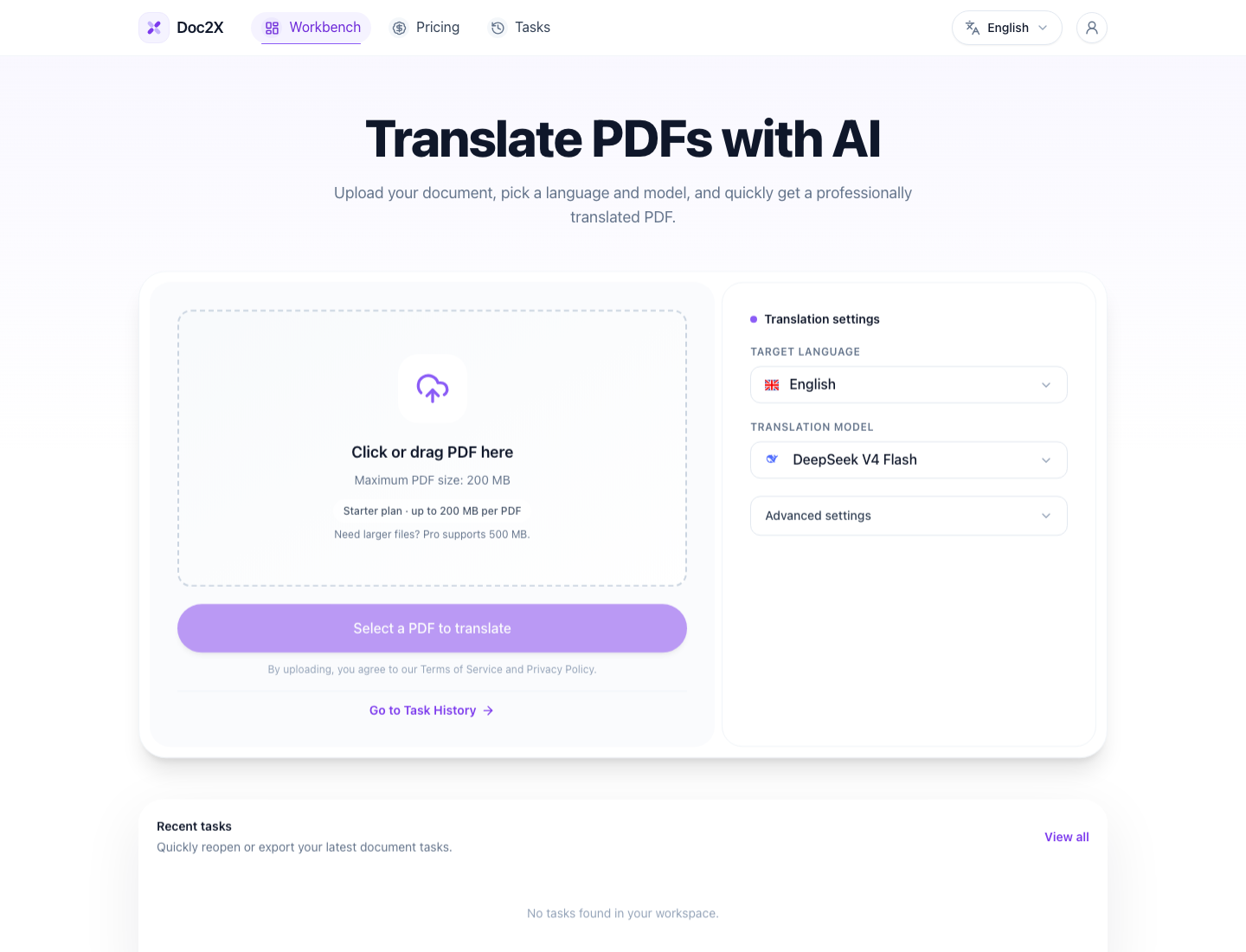
- Open Workbench.
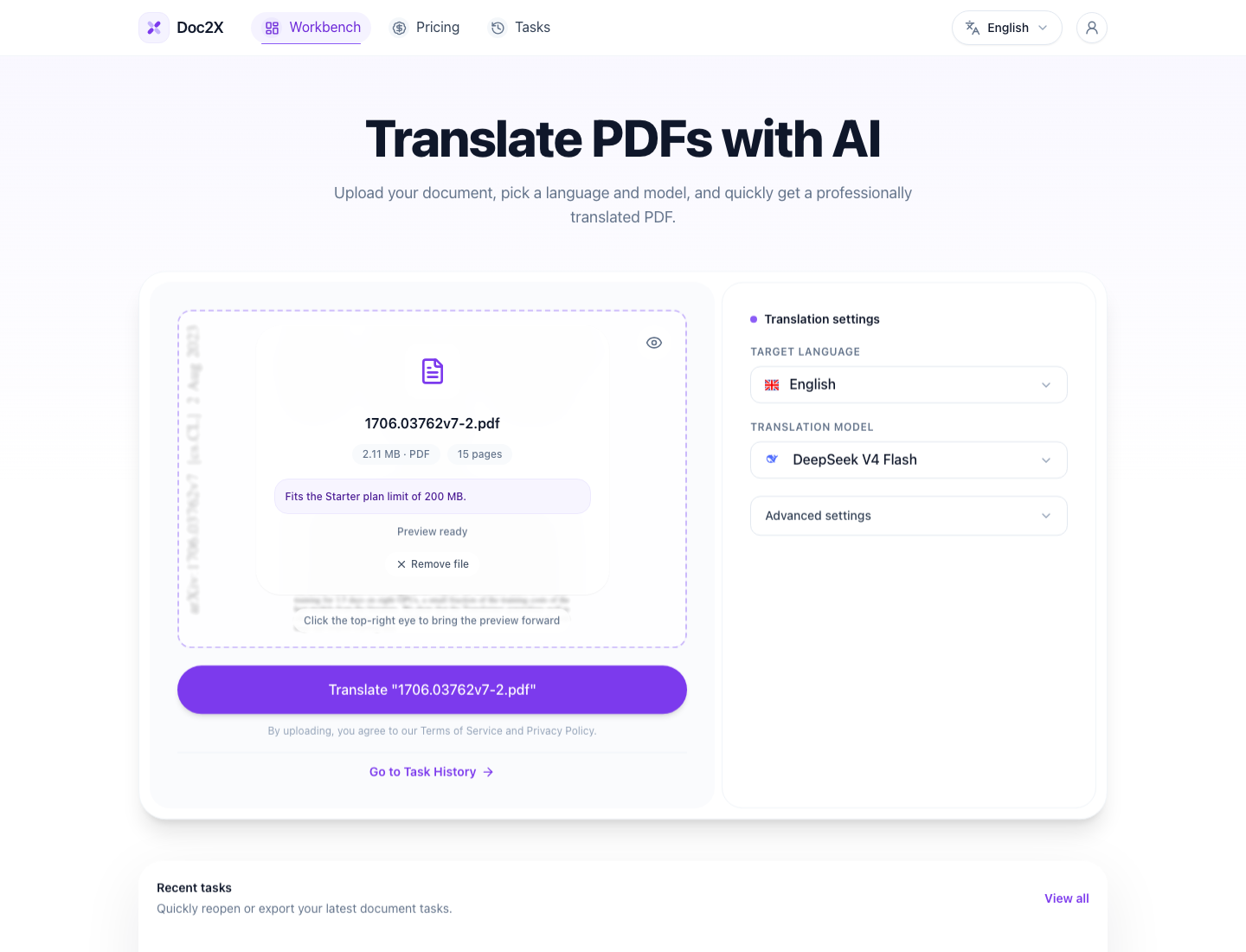
- Drag a PDF into the upload area, or click the upload box to choose a file.
- Confirm the file name, size, page count, and plan limit.
- Choose the target language.
- Choose a translation model. The default model is the best starting point for most documents.
- Open Advanced settings only if you need to skip content or use Enhanced translation.
- Click Translate.
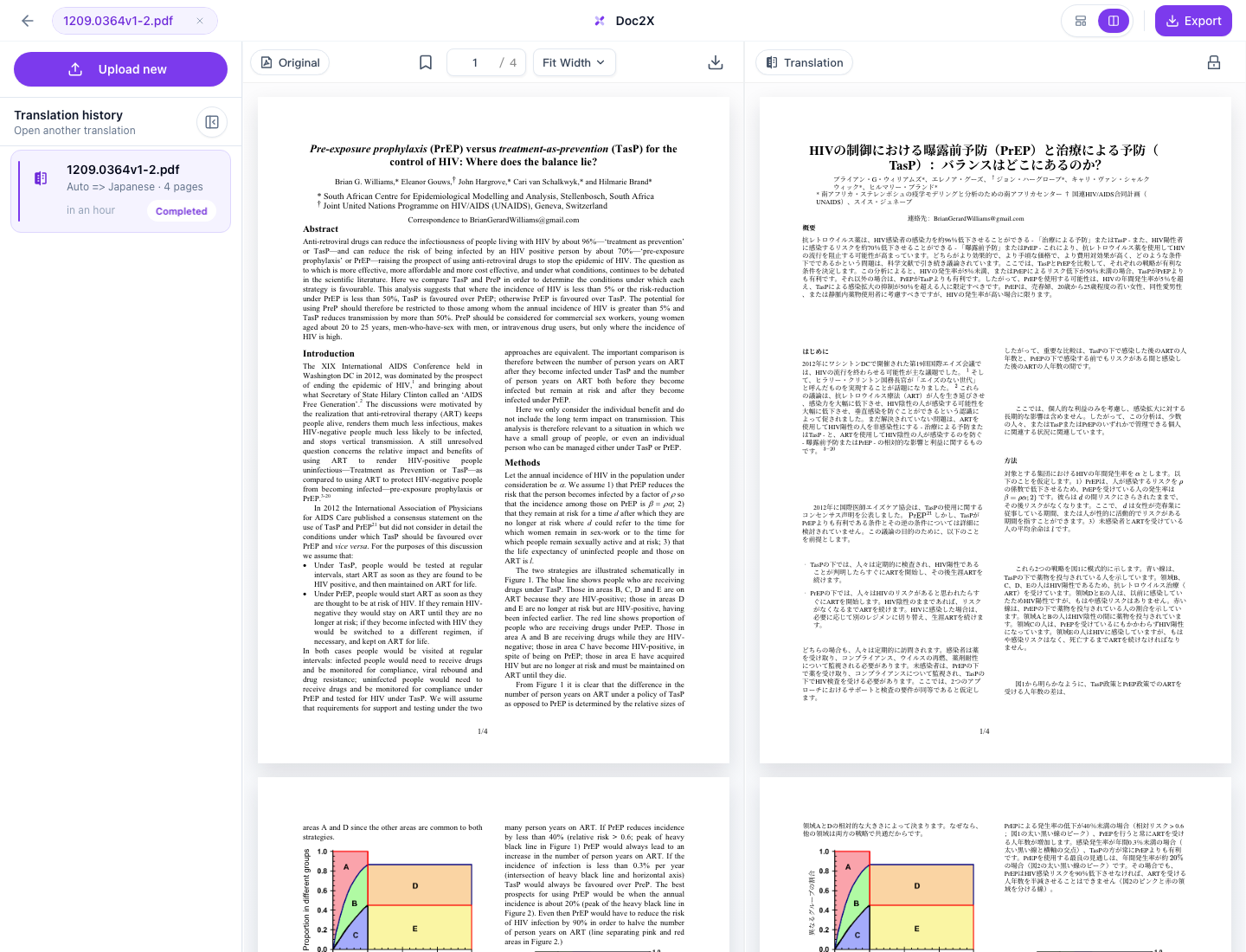
- Open the completed task, review the translated PDF, and export when ready.
Processing stages
| Stage | What Doc2X does | What you should do |
|---|---|---|
| Upload | Sends the source PDF for processing | Keep the tab open until upload completes |
| Parse | Reads text, layout, tables, figures, and formulas | Wait while Doc2X prepares the document structure |
| Translate | Generates the translated result with your selected options | Review the result after completion |
TIP
If a translation takes longer than expected, you can open Tasks later. Completed translations are saved there, so you do not need to start over.
File size limits
| Plan | PDF size limit |
|---|---|
| Free | 20 MB |
| Starter | 200 MB |
| Pro | 500 MB |
If your PDF is above your plan limit, compress it, split it into smaller PDFs, or use a plan with a higher file size limit.
Result views
Doc2X can show:
- A layout-preserved translated PDF for normal reading and export.
- A source and translated PDF comparison view for checking details.
- A text-first reading view when the completed task includes that result.
The text-first view is not a separate upload mode. It is opened inside the reader after the PDF translation is complete.